Gaming SSD Upgrades: Buy the Space You Need and the Drive That Fits
4 min read
MAKE IT YOUR READSaved
A compatibility-first SSD guide covering usable capacity, installation planning, backups and the limits of speed claims.
Running out of storage creates a familiar cycle: uninstall a game, download it again later, then repeat. An SSD upgrade can reduce that friction, but the best purchase is not automatically the model with the largest advertised transfer number. Capacity, physical fit, platform support and a safe migration plan come first.
This is a buying and planning guide, not a benchmark comparison or a hands-on drive review. Official documentation explains interfaces and compatibility. Our examples are hypothetical and no affiliate purchase links are included.
Measure the problem you are trying to solve
List the games you actually keep installed, your operating system and important applications. Add recordings, screenshots and editing projects if you create content. Separate items you need available every day from archives you rarely open. That distinction can change whether you need a larger internal drive or simply better file organization.
Leave room in your plan for updates and future installations rather than budgeting every last unit of advertised capacity. Check the space reported by your system and understand that displayed usable capacity does not match a box label in a simple one-for-one way. Do not promise yourself a fixed number of games: installation sizes change.
A player with a few regularly used titles has a different storage problem from someone recording long sessions. Write the requirement in terms of your own library and workflow. “Stop deleting my main games” is a clearer objective than “buy the fastest drive.”
Match the interface and physical format
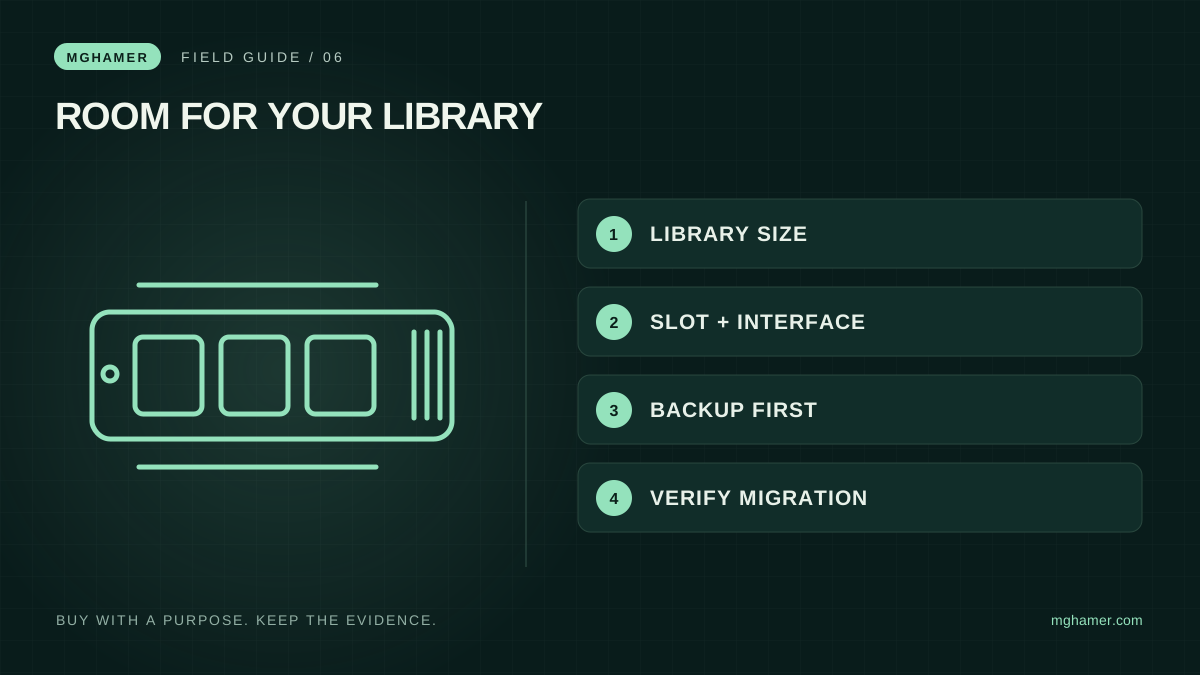
Kingston's SSD documentation distinguishes SATA and PCIe NVMe support and recommends checking system compatibility. M.2 describes a physical form factor; it is not by itself a complete guarantee of interface support. Your machine's manual and exact model are therefore essential inputs to the purchase.
Check the supported length, available slot, clearance and any installation requirements. A laptop, desktop and console can impose different conditions. If upgrading a console, use that platform's current official requirements rather than assuming a desktop listing applies. Do not buy first and discover the slot constraints when the package arrives.
Ask whether fitting the drive requires removing existing hardware or replacing the system drive. If the work is unfamiliar, compare the cost of a competent installation service and ask what happens to your old data. Convenience matters, but a vague promise to “move everything” is not a documented plan.
Treat speed claims as one part of ownership
Advertised sequential transfer rates describe a particular kind of workload. They do not, on their own, establish how much faster your favorite game will load or whether a recording session will run smoothly. Look for tests that match your task and clearly identify the drive capacity, system and settings.
Avoid comparing a short promotional figure from one product with an unrelated real-world result from another. If your main problem is insufficient space, a compatible larger drive may provide more practical value than paying for a performance difference you have not established you need.
Check warranty conditions, any endurance rating, local service and included accessories. These are terms to read, not a forecast of exactly when a drive will fail. A warranty does not replace a backup of files you cannot recreate. Save receipts and note the exact model and capacity you bought.
Plan the migration before opening the case
Identify what is replaceable and what is not. A game can often be downloaded again; personal recordings, documents and project files may not be recoverable if their only copy is lost. Make a separate backup and confirm that you can open representative files before changing hardware.
Choose between a fresh installation and a supported migration method based on your system and comfort level. Follow the manufacturer and operating-system instructions. Keep the old drive unchanged until the new setup boots, your important files are present and the applications you need work normally.
Finally, inspect the machine's reported drive and available space, then test your routine during the return period. Keep a written inventory so storage growth becomes visible instead of surprising. The useful upgrade gives your library room to breathe and your irreplaceable files a safer process; a fast number alone cannot do either job.
Sources & further reading
- Kingston — SSD interface and compatibility FAQkingston.com
- Kingston — SSD and NVMe technology overviewmedia.kingston.com
What did you take away?
Real reactions. Thoughtful discussion. Every comment is reviewed before it appears.
Loading reader contributions…
Sign in to join the discussion