Best CS2 settings for performance and latency: measure what works
4 min read
MAKE IT YOUR READSaved
A practical guide to CS2 display settings, graphics and latency testing, with clear comparisons instead of guaranteed FPS claims.
No single settings preset produces the same result on every CS2 PC. Your processor, graphics card and monitor matter, as does whether you are dealing with consistently low performance, sudden stutters or network latency.
The goal is not the highest FPS number in a quiet scene. It is a clear, stable experience when a round fills with smoke, movement and fights. Here is a practical way to find settings that suit your machine.
1. Record performance before changing anything
Write down your resolution and main graphics settings, then test a scene you can repeat. Note smoothness, sudden drops and how clearly you can see opponents.
Do not compare an empty scene with a crowded fight and attribute the difference to one setting. Useful comparisons need similar conditions.
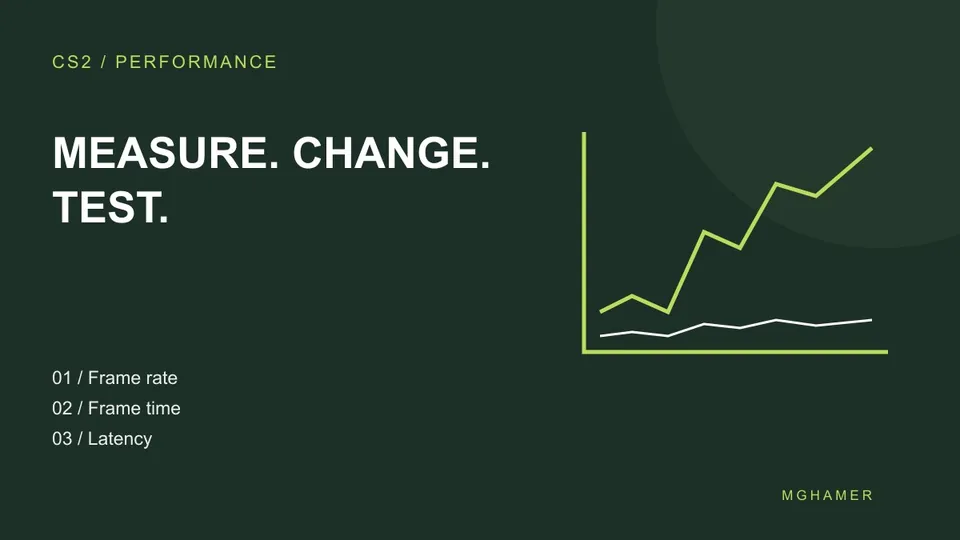
Change one option at a time. That makes it easier to identify what helped and undo changes that did not.
2. Check your monitor refresh rate
Owning a fast monitor does not necessarily mean it is running at the rate you expect. Check Windows advanced display settings and confirm the correct monitor and available refresh rate for your resolution.
If the expected rate is missing, check the monitor, cable and port specifications. Verify the display setup before assuming the game is responsible.
3. Start with a clear resolution
Use your display’s native resolution as a baseline, then test a lower resolution if performance is insufficient. Observe whether smoothness improves and whether opponents become harder to distinguish.
Do not adopt a different aspect ratio simply because a professional player uses it. Try it in practice and judge your ability to read the scene and track movement, rather than whether it looks more professional.
4. Lower graphics in a controlled order
Start with effects you can reduce without harming image clarity, then test the result. Setting everything to minimum should not be an automatic rule.
When comparing shadows or anti-aliasing, consider visual information as well as performance. A small frame-rate gain may not help if it makes the image harder to read.
Resolution: start at native; test a lower value if smoothness is insufficient.
Anti-aliasing: start at a moderate level; compare edge clarity against performance.
Details and effects: try medium settings; lower one option and retest.
Shadows: compare levels while watching visual usefulness and performance.
Frame cap: test a stable value for your PC; compare consistency and response, not only averages.
These are suggested testing starting points, not measurements of your computer or a guarantee of a specific improvement.
5. Test latency-reduction features
CS2 supports NVIDIA Reflex on compatible hardware. If available, enable it and compare responsiveness under similar conditions. Do not assume a manufacturer’s published performance figure will apply to your PC and settings.
Avoid changing synchronization options, frame limits and latency settings together. Keep a baseline and test each adjustment separately.
6. Separate graphics issues from connection issues
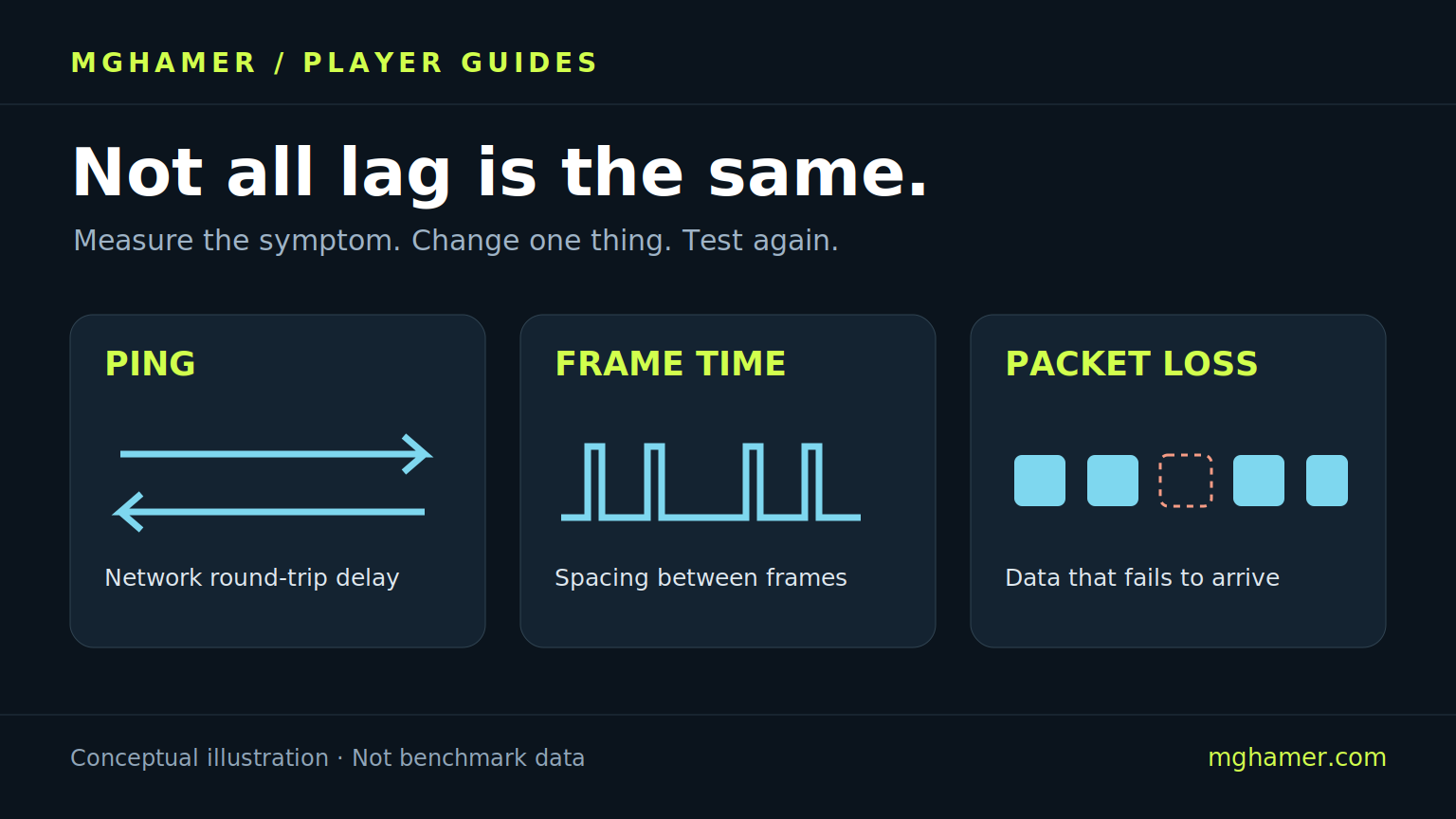
If movement feels uneven, record what happens before choosing a fix. Does it occur in local practice too? Does it coincide with higher network latency? Did it begin after an update or after opening a background application?
These observations help narrow the possibilities. Lower graphics do not automatically fix every delay, and a different connection will not resolve every frame-rendering problem.
7. Save the settings that work
Once you get a good result, save screenshots of your settings and note the test date. If a major update changes performance, repeat your comparison instead of randomly resetting everything.
The best CS2 settings are ones whose purpose you can explain. Measure performance, change one option at a time and balance clarity, smoothness and responsiveness. Settings cannot replace practice, but a stable setup lets you practise without avoidable distractions.
Sources & further reading
- Microsoft — Change your monitor refresh ratesupport.microsoft.com
- NVIDIA — Counter-Strike 2 and Reflexnvidia.com
What did you take away?
Real reactions. Thoughtful discussion. Every comment is reviewed before it appears.
Loading reader contributions…
Sign in to join the discussion