High ping, low FPS or packet loss: find what is hurting your game
4 min read
MAKE IT YOUR READSaved
A practical CS2 and VALORANT checklist to separate PC performance problems from network delay, jitter and loss before changing your settings.
Prepared with AI assistance using the official sources below. Send a correction
“Lag” describes a feeling, not a diagnosis. Before buying hardware or changing a router setting, record what the game is doing when the problem appears. A smooth picture can still arrive late; a strong connection cannot make an overloaded PC draw frames faster. Both problems can occur together.
Read the right signals
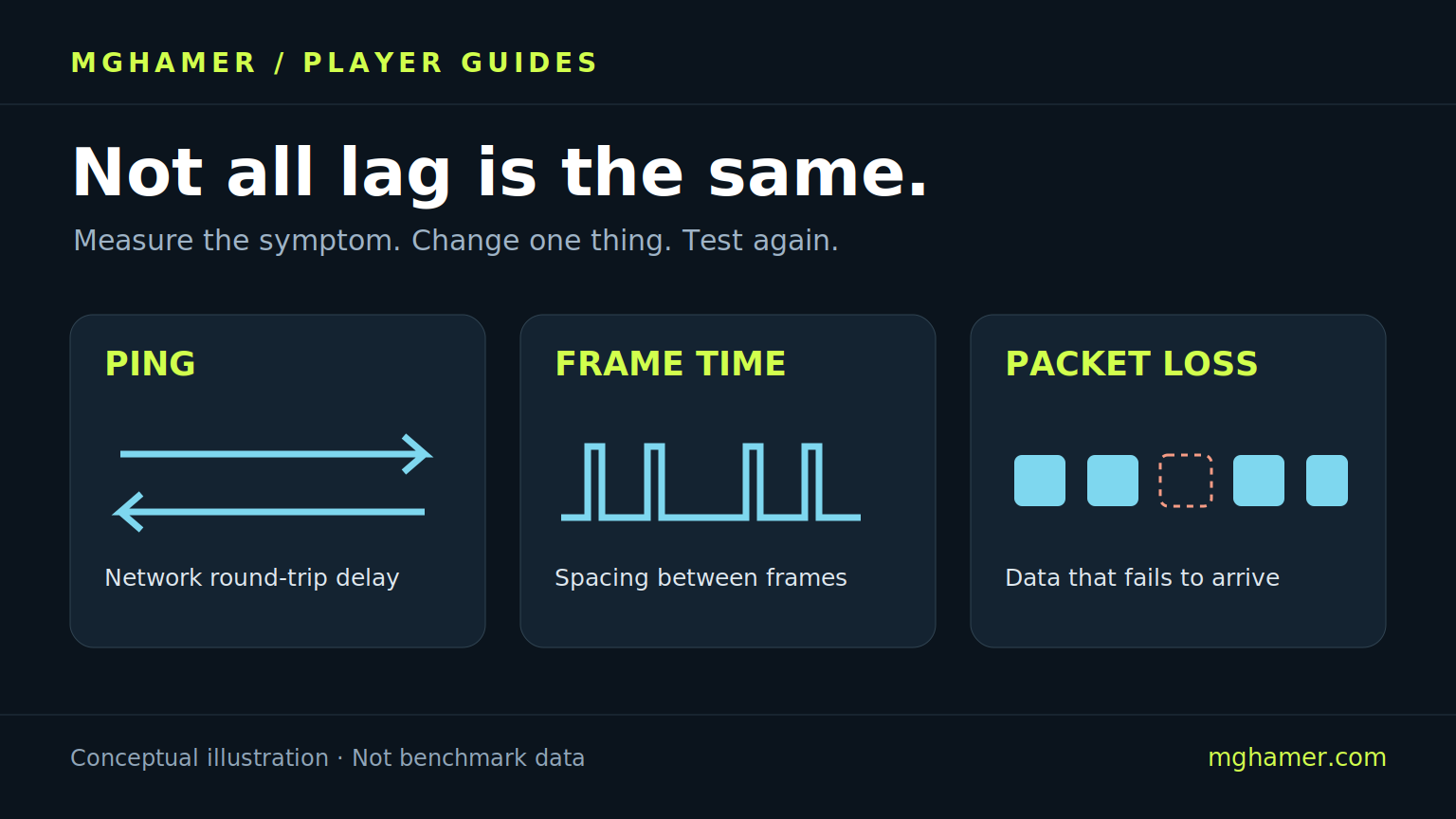
Ping is the network round-trip delay, usually shown in milliseconds. FPS counts rendered frames per second; frame time describes the spacing between frames. Packet loss means data failed to arrive, while jitter describes uneven network timing. A single average can hide short spikes.
CS2 exposes its HUD under Settings > Game > Telemetry. Valve explains that its network-quality warnings include data arriving too late for a tick, not just raw packet loss. Do not assume every network percentage is a simple loss counter. In VALORANT, enable the performance/network statistics available in your client and note the exact label beside each reading.
If the picture stutters
Start with the rendering side when turning the camera looks choppy and FPS or frame time deteriorates. Compare the same practice scenario before and after one change. A quiet practice scene is a useful baseline, but it does not reproduce the load of a full match.
Lower graphics settings for a comparison, close unnecessary resource-heavy applications and check official graphics-driver updates and system requirements. Riot includes these among its frame-rate troubleshooting steps. Avoid changing several settings together: you will lose the ability to tell which one helped.
If movement feels delayed or snaps back
Network problems can leave rendering smooth while remote movement or state updates become irregular. Riot’s netcode explanation describes how disagreement between the client and server can cause corrections. That symptom is a clue, not proof that your ISP or the game server is at fault.
Compare a wired Ethernet connection with Wi-Fi where practical, check cable connections, and test without an optional VPN or proxy. Riot recommends these basic network checks. Pause your own large downloads or uploads for a controlled comparison; note whether others are using the same connection. Do not disable security software as a routine “lag fix.”
Two examples, not universal thresholds
Example A: FPS drops sharply when a busy scene appears, but network readings stay close to their usual baseline. Investigate rendering first. Example B: FPS stays steady while the network graph spikes and movement corrects itself. Investigate the connection first. These are illustrative scenarios, not measured results or rules that identify every fault.
If both sets of readings worsen, work through them separately. Keep the map, test duration and settings consistent where possible. A short improvement after a restart does not prove a permanent fix, and one bad match is not enough to identify a hardware failure.
A useful five-minute record
Write down the game, map, approximate time, server or region if shown, connection type, FPS/frame-time behavior and network readings. Describe the symptom in plain language: “camera stutters” is more useful than “everything is broken.” Capture a brief clip only if recording does not worsen the issue.
Retest after one reversible change. If the problem continues, send that record through the game’s official support route; contact your ISP if evidence points to a wider connection issue. Remove account details or private information from public screenshots. There is no single setting that guarantees low latency for every player.
Continue reading
Use the official guides below for current menus and platform-specific steps. Explore Mghamer’s CS2 and VALORANT sections for more coverage, or save the guide index for your next troubleshooting session. This article explains a method; it does not claim to benchmark your computer or connection.
Sources & further reading
- Riot Support — troubleshooting frame rate issuessupport.riotgames.com
- Riot Support — troubleshooting your network connectionsupport.riotgames.com
- Valve — Source2 Telemetry HUDhelp.steampowered.com
- Riot Games — Peeking into VALORANT’s Netcoderiotgames.com
What did you take away?
Real reactions. Thoughtful discussion. Every comment is reviewed before it appears.
Loading reader contributions…
Sign in to join the discussion